Dig Clean Mobile Controls
Touch controls for Dig & Clean dig and clean.
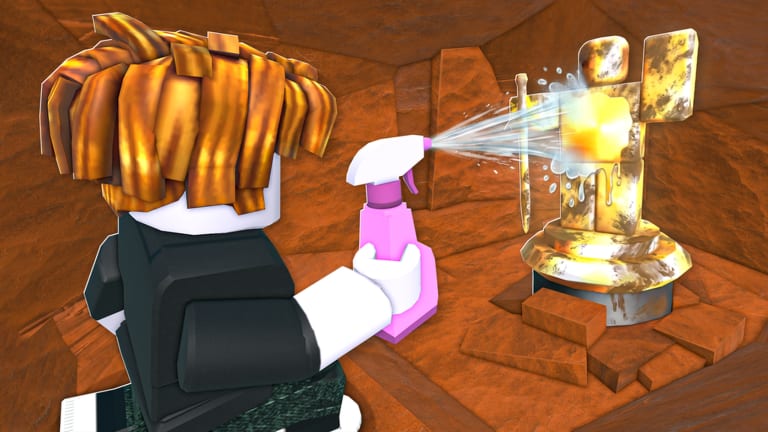
Dig Clean mobile controls matter because Dig & Clean explicitly supports phones and tablets. The dig-and-clean fantasy works in short mobile sessions if your thumbs can reach dig and spray without covering the UI.
Dig Clean mobile layout
| Action | Typical mobile input |
|---|---|
| Move | Virtual joystick |
| Camera | Drag on open screen space |
| Dig | On-screen dig / attack button with shovel equipped |
| Jump | Jump button |
| Spray | Tool button after selecting spray bottle |
| Inventory | Backpack icon |
| Shop / Menu | Side or top HUD buttons |
Dig Clean mobile dig tips
- Equip shovel before mashing the action button
- Dig in short batches so cleaning stays manageable
- Rotate the camera to confirm you are on diggable ground (How to Dig)
Dig Clean mobile clean tips
Spray UIs can sit near movement sticks. Shift your grip so the spray thumb is free. Finish cleans before another dig streak (How to Clean).
Dig Clean mobile quality-of-life
- Lower graphics if heat causes lag
- Use tablet landscape for easier museum arranging
- Paste codes from Notes if the on-screen keyboard fights you (Redeem Codes)
Dig Clean mobile session plan
Mobile Dig Clean shines in 10–20 minute loops: dig, clean, sell, one upgrade check via upgrade priority, done.
Sibling Dig Clean controls
Controls Hub · PC · Console
Mobile Dig Clean is fully valid — you do not need a PC to build a museum.
Dig Clean mobile grip patterns
Portrait mode works for quick digs; landscape gives more screen for museum arranging and shop menus. Try both before committing to a daily layout.
Dig Clean mobile dig-clean alternation
Alternate thumbs: movement joystick with left, dig/clean action with right. If both buttons cluster on one side, adjust Roblox mobile control layout in settings when available.
Dig Clean mobile network tips
Wi-Fi stability matters during spray timing. Switch networks if cleans stutter or inputs drop. Mobile data works but spikes cause missed dig confirmations.
Dig Clean mobile inventory management
Open backpack between batches, not mid-dig streak. Sorting on a small screen is slower — smaller dig batches prevent overflow rage quits.
Dig Clean mobile and codes
Copy codes from this wiki into Notes, then paste into the in-game box. Typing long strings on phone keyboards invites typos that look like expired codes.
Dig Clean mobile accessory tips
A phone stand or tablet kickstand frees both hands for museum arranging and shop browsing. Pop-socket grips help if your device feels slippery during dig streaks. None of this is required, but ergonomics reduce mistakes when spray buttons sit near movement controls.
Dig Clean mobile brightness and visibility
Raise brightness outdoors so rarity text stays readable after cleaning. Dim screens cause mis-sells when labels look identical. Night mode is fine for casual digging; use full brightness for inventory sorting sessions.
Frequently Asked Questions
Quick answers to the most common Dig Clean questions.
Can I play Dig Clean on iPhone or Android?
Yes. Dig & Clean supports mobile Roblox clients.
Why is spraying hard on Dig Clean mobile?
UI overlap — re-grip so your spray thumb is free and select the spray tool first.
Is Dig Clean harder on mobile?
Timing can be harder, but the progression path is the same as PC.
Does Dig Clean support tablets?
Yes. Dig & Clean lists Tablet support — larger screens make museum and shop UIs easier.
How do I reduce Dig Clean mobile lag?
Lower Roblox graphics, close other apps, and avoid overheating during long sessions.
Can I use a Bluetooth controller with Dig Clean mobile?
If Roblox mobile supports your controller in that session, yes — otherwise stick to touch controls from this guide.